Building My Linux Home Server: Part I - VirtualBox Networking
For a larger project, I am setting up my own home server as the foundation for building a high-performance data pipeline in the future. I decided to start with Ubuntu Server running inside Oracle VirtualBox and use the process to understand Linux administration and networking from the ground up.
My initial goal was simple: connect my main machine to the virtual server and access it over SSH. However, getting there raised several interesting questions about IP addresses, NAT, port forwarding, and how multiple virtual machines communicate.
This article documents my setup, the questions I encountered, and what I learned along the way.
1. Setting Up the Lab
I used Oracle VirtualBox to run Ubuntu Server on my existing Linux machine.
Throughout this article, I will use the following terms:
- Host: My main Linux machine running VirtualBox.
- Guest: The Ubuntu Server virtual machine running inside VirtualBox.
- VM: A virtual machine. I will refer to two guests as VM1 and VM2 when discussing multiple VMs.
- SSH: Secure Shell, a protocol for securely accessing and administering a remote machine.
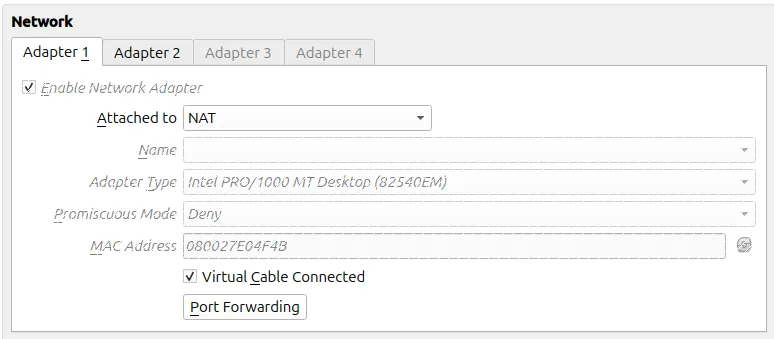
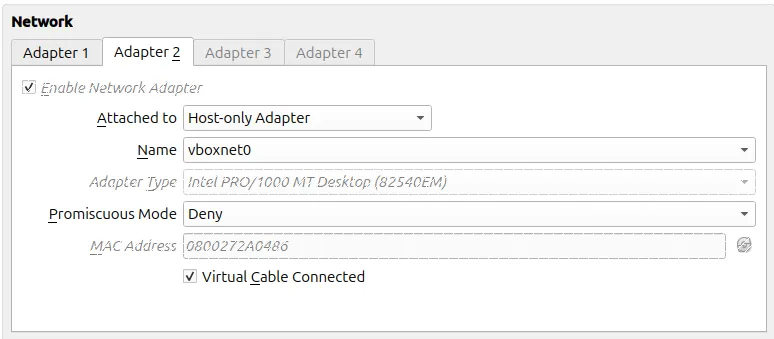
My initial configuration used two virtual network adapters:
- Adapter 1: NAT, to provide the guest with outbound network connectivity.
- Adapter 2: Host-only, to create a private network between the host and the guest.
I could have used other configurations, such as Bridged networking, but I chose NAT and Host-only networking to understand how they work and how their purposes differ.
2. Understanding NAT and Host-only Networking
Before connecting to the server, I needed to understand why I was using two network adapters.
NAT: Accessing External Networks
Network Address Translation (NAT) allows the guest to initiate connections to external networks through VirtualBox.
For example, Ubuntu Server can access the internet to download packages without needing its own directly accessible address on my physical network.
However, outbound connectivity does not automatically mean that I can initiate a connection from the host to a service inside the guest.
To access a guest service through VirtualBox's standard NAT configuration, I can configure port forwarding.
Host-only: Creating a Private Network
Host-only networking creates a private network connecting the host and the virtual machines attached to it.
It allows the host to communicate directly with a guest using its Host-only IP address. Multiple VMs can also communicate over the same Host-only network.
Unlike NAT, Host-only networking does not automatically provide internet access.
For my setup, NAT provides convenient outbound connectivity, while Host-only provides a direct communication path between my host and the guest.
3. Connecting Through NAT: Why Use Port Forwarding?
My first question was: if the guest can access the internet, why can I not simply connect to its SSH service from the host?
The answer lies in how the network is configured.
With standard VirtualBox NAT, the guest can initiate outbound connections, but the host does not automatically get a direct connection path to every service inside the guest.
I can solve this by creating a port-forwarding rule.
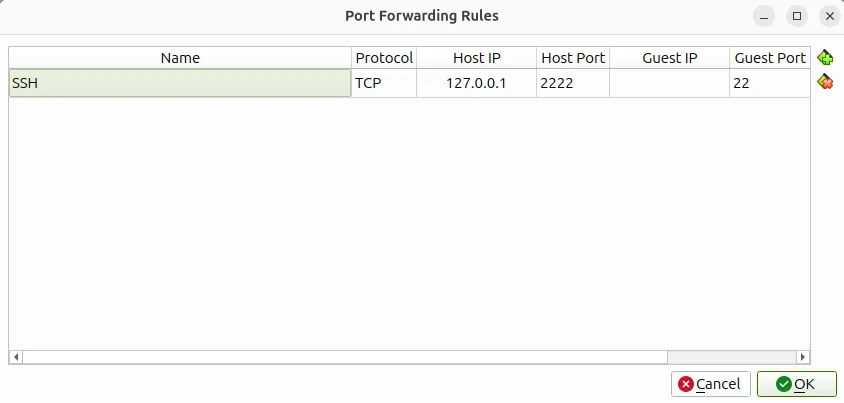
For example, I can configure the following rule in VirtualBox:
- Protocol: TCP
- Host IP:
127.0.0.1 - Host port:
2222 - Guest port:
22
I can then connect from the host using:
ssh -p 2222 username@127.0.0.1
Here, username is the account name on the Ubuntu Server guest.
The connection works in the following sequence:
- The SSH client on the host connects to
127.0.0.1on port2222. - VirtualBox receives the connection through its NAT port-forwarding rule.
- VirtualBox forwards the connection to port
22on the guest. - The SSH service on Ubuntu Server handles the connection.
- SSH authenticates the specified user.
Why Are the Host and Guest Ports Different?
The host-side port is 2222, while the guest-side port is 22.
This is valid because VirtualBox receives the connection on one endpoint and forwards it to another.
SSH normally listens on TCP port 22, so there is no need to change the guest's SSH configuration just because I want to use port 2222 on the host.
This also helps when running multiple VMs.
For example:
- VM1: Host port
2222forwards to guest port22. - VM2: Host port
2223forwards to guest port22.
Both guests can continue using their default SSH port.
The important point is that the host-side ports must be different when the same host IP and protocol are used for these forwarding rules.
Another clarification: The SSH username does not determine which VM receives the connection. The destination IP address and port determine where the connection goes. The username is used for authentication after the connection reaches the selected SSH service.
4. Why Use 127.0.0.1 Instead of the Host's Actual IP?
This was one of the most useful concepts I explored.
The address 127.0.0.1 is called the loopback address. It refers to the machine on which the application is running.
For example:
- When an SSH client on my host connects to
127.0.0.1, it connects to the host itself. - When an SSH client inside the guest connects to
127.0.0.1, it connects to the guest itself.
Although the address is identical, the endpoints are different because they belong to different operating systems.
In my NAT configuration, VirtualBox forwards connections received on the host's loopback endpoint at port 2222 to the guest's port 22.
I could also bind the forwarding rule to a particular host network address, where appropriate. However, using 127.0.0.1 is useful when I only need to connect from the host itself.
What About the Guest's IP Address?
This is where Host-only networking becomes useful.
With Host-only networking, the guest has an IP address on a private network. Instead of connecting to the host's loopback address and relying on port forwarding, I can connect directly to the guest.
For example:
ssh username@192.168.56.101
Here, 192.168.56.101 is an illustrative Host-only IP address assigned to the guest.
The connection works in a simpler sequence:
- The SSH client on the host connects to
192.168.56.101on port22. - The Host-only network carries the traffic to the guest.
- The guest's SSH service receives the connection.
No NAT port-forwarding rule is needed for this connection.
Do I Need to Specify -p 22?
No. Port 22 is the default for SSH.
These commands are equivalent:
ssh username@192.168.56.101
ssh -p 22 username@192.168.56.101
The second command explicitly specifies the port, while the first uses the default.
Specifying -p 22 is unnecessary unless I want to make the port explicit. If the SSH service uses a non-default port, I must specify that port.
5. Configuring Host-only Networking
I initially ran into a configuration issue because I had not selected a Host-only network for the guest's second adapter.
Creating or selecting the network in VirtualBox Network Manager resolved that part of the setup.
The configuration process was:
- Open VirtualBox Network Manager.
- Create or confirm a Host-only network, such as
vboxnet0. - Open the Ubuntu Server VM's network settings.
- Keep Adapter 1 attached to NAT.
- Attach Adapter 2 to the Host-only network
vboxnet0. - Ensure the virtual cable is connected.
- Check the guest's IP configuration.
- Connect to the guest using its Host-only IP.
The important point is that enabling an adapter is not the same as attaching it to a Host-only network. The adapter must be connected to an actual network, such as vboxnet0.
Once the guest has a valid Host-only IP address and SSH is running, I can connect directly:
ssh username@192.168.56.101
How Do I Find the Guest's IP Address?
Inside Ubuntu Server, I can run:
ip -br addr
This displays the network interfaces and their assigned IP addresses.
I can also inspect the routing table:
ip route
These commands help me understand which interfaces exist, which addresses they use, and how traffic is routed.

6. Can Multiple VMs Use the Same Host-only Network?
Yes. This was another question I explored.
I initially wondered whether I would need to create a separate Host-only network for every virtual machine. The answer is no.
I can attach VM1 and VM2 to the same Host-only network, vboxnet0. Both VMs can communicate over that network, provided their IP configurations and firewall rules allow it.
For example, I could use the following addresses:
- Host:
192.168.56.1 - VM1:
192.168.56.101 - VM2:
192.168.56.102
These addresses are illustrative. The actual addresses depend on my Host-only network configuration.
The key requirement is that each active device on the same subnet must have a unique IP address.
One Host-only network can therefore support multiple VMs without requiring a separate network for every guest.
I would create separate Host-only networks only when I wanted to isolate groups of VMs into different private networks.
7. Does VirtualBox Assign IP Addresses Automatically?
It can, but it depends on the configuration.
VirtualBox can provide a DHCP server for a Host-only network. If DHCP is enabled and the guest is configured to obtain an address automatically, the guest can receive an IP address without manual configuration.
Alternatively, I can configure static IP addresses.
Both approaches work, but they have different trade-offs:
- DHCP: Convenient because addresses are assigned automatically.
- Static addressing: Useful when I want predictable addresses for servers and services.
For a growing homelab, predictable addresses can make administration easier. However, I need to ensure that manually assigned addresses do not conflict with other devices or the DHCP allocation range.
8. What Happens If Two VMs Have the Same IP Address?
This question led to a useful networking lesson.
Suppose I accidentally configure both VM1 and VM2 with the address 192.168.56.101 while they are connected to the same Host-only network.
Both machines now claim the same IP address. This creates an IP address conflict.
To understand why this causes problems, it helps to know that IPv4 networks use Address Resolution Protocol (ARP) to associate IP addresses with link-layer addresses, such as MAC addresses.
If two machines claim the same IP address, the network may associate that IP with different MAC addresses at different times. Traffic can reach the wrong machine, and connections may fail intermittently.
There is no universal timestamp-based rule that determines which machine wins. The behaviour depends on network activity, ARP caches, and other details of the network.
The practical rule is simple:
Never assign the same IP address to two active devices on the same network.
There is one important exception: the same IP can be reused on genuinely isolated networks because those devices do not share the same network segment.
For example, VM1 and VM2 could both use 192.168.56.101 on separate, isolated virtual networks without creating a conflict between them.
This is why keeping track of IP assignments becomes increasingly important as a homelab grows.
9. What Is Promiscuous Mode, and Do I Need It?
While configuring the adapters, I also encountered VirtualBox's promiscuous mode setting.
Promiscuous mode controls whether a virtual network adapter is permitted to receive traffic beyond the traffic normally addressed to it. The exact visibility depends on the networking mode and configuration.
VirtualBox commonly provides these options:
- Deny: Does not permit the adapter to receive traffic not intended for it.
- Allow VMs: Permits certain traffic associated with other virtual machines.
- Allow All: Permits broader packet reception.
For ordinary SSH access and ping tests, I do not need promiscuous mode. Leaving it at Deny is a sensible default.
However, if I later build a network-monitoring lab and want to inspect traffic using tools such as tcpdump or Wireshark, I may need to investigate the network mode, packet visibility, and adapter settings.
Enabling promiscuous mode alone does not guarantee that all traffic will become visible.
10. Other Networking Options I May Explore
NAT and Host-only networking were sufficient for my current requirements, but VirtualBox supports other networking configurations as well.
A few alternatives worth exploring are:
- Bridged networking: Makes the guest appear as a device on the physical network, subject to the host network and adapter configuration. It can be useful when other physical devices need to reach the guest.
- Internal networking: Creates a network for communication between selected virtual machines without directly connecting that network to the host.
- NAT Network: Allows multiple VMs to share a NAT network and communicate with one another while accessing external networks, depending on configuration.
- Host-only networking with static addresses: Useful when I want predictable IP addresses for a private lab.
Each option serves a different purpose. The right choice depends on whether I need internet access, host-to-guest communication, VM-to-VM communication, isolation, or access from physical devices.
I have not explored all these configurations yet, but they are useful options to consider as the lab evolves.
11. Troubleshooting Commands
When a connection fails, I should not immediately assume that VirtualBox itself is the problem. I need to check the network interface, IP address, routing, SSH service, and firewall.
These commands provide a useful starting point.
Inside Ubuntu Server
# Display interfaces and IP addresses
ip -br addr

# Display routing information
ip route

# Check the SSH service
systemctl status ssh

# Inspect listening TCP and UDP sockets
ss -tlnp

# Check firewall status
sudo ufw status
From the Host
# Test reachability
ping 192.168.56.101

# Connect over Host-only networking
ssh username@192.168.56.101
Replace the example IP address with the guest's actual Host-only address.
A failed ping does not necessarily mean SSH is unavailable. ICMP traffic may be blocked by firewall rules even when the SSH service is reachable.
Other tools can help investigate potential bottlenecks and failures as the lab becomes more complex:
tcpdumpand Wireshark for packet inspection.tracerouteortracepathfor investigating network paths.mtrfor examining path behaviour over time.iperf3for measuring network throughput.top,htop, andvmstatfor examining system resource usage.
I have not used all these tools in this experiment, but they are worth keeping in mind for future troubleshooting.
12. What I Learned
This experiment started with a simple goal: connect to an Ubuntu Server VM from my Linux host.
Along the way, I learned that virtual machine networking is not just about assigning an IP address. Connectivity depends on the network mode, interface configuration, routing, listening services, and firewall rules.
The main takeaways were:
- NAT and Host-only networking solve different problems. NAT is convenient for outbound connectivity, while Host-only provides a private network between the host and attached VMs.
- Loopback is local to each operating system. The host's
127.0.0.1and the guest's127.0.0.1refer to different endpoints. - Port forwarding maps a host-side endpoint to a guest-side endpoint. The host and guest can use different port numbers.
- SSH defaults to port 22. Specifying
-p 22is optional unless I need to override the default. - Multiple VMs can share one Host-only network. They do not need separate Host-only networks, but they do need unique IP addresses.
- Duplicate IP addresses cause conflicts. DHCP and static addressing both work, provided addresses are managed correctly.
- Troubleshooting requires examining multiple layers. Network interfaces, IP addresses, routing, services, and firewall rules all matter.
This is only the beginning of my Linux server homelab. As I progress towards building a high-performance data pipeline, I plan to explore Linux administration, networking, security, monitoring, automation, and performance optimisation in greater depth.
I will document these experiments in subsequent articles, focusing on what I build, what I learn, and the problems I encounter along the way.
*Note: The IP addresses and port-forwarding values in this article are examples. Your actual configuration may differ.